How to Change Company Logo?


2 min read

Your company logo is the first thing candidates and employees notice on your AmbitionBox profile. Keeping it updated ensures brand consistency and trust. Here’s how you can edit or update it.


Step 1: Log in to the Employer Dashboard

Visit https://employer.ambitionbox.com and log in using your registered company credentials.
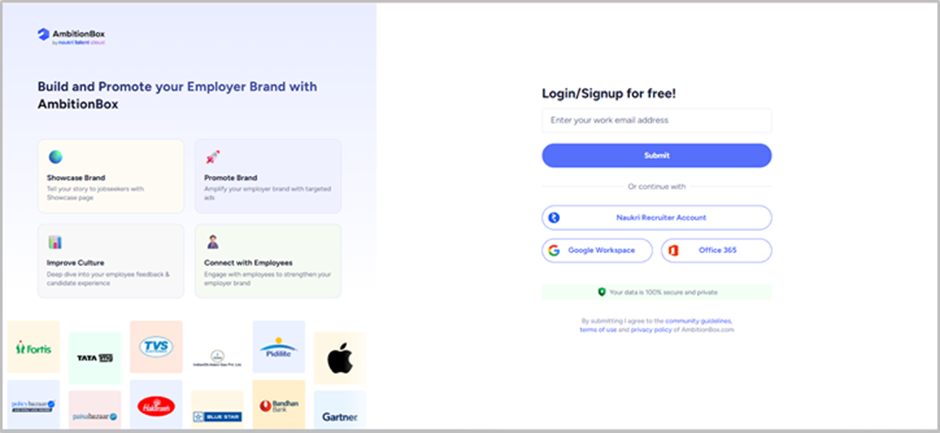
Step 2: Navigate to Company Info

Once logged in, you’ll land on the Employer Dashboard. From the left panel, click on 'Overview' under the 'Showcase Your Brand' section.
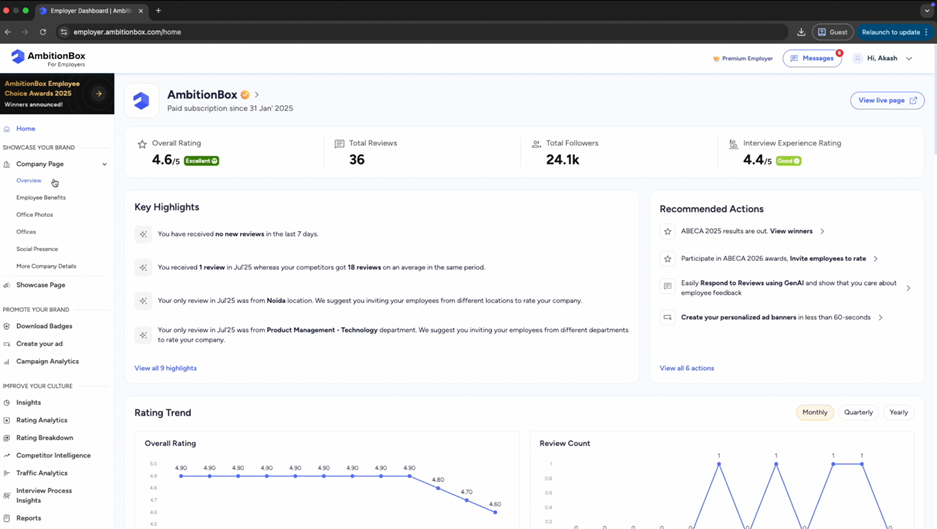
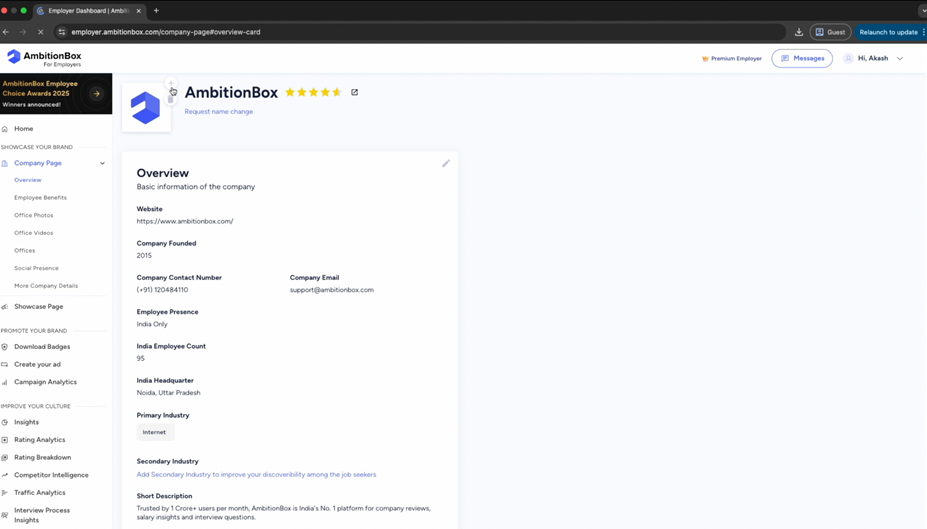
Step 3: Edit Logo Section

On the Company Info page, go to the Logo section. Here, click on the '+' icon.
Choose the updated logo file from your computer and upload it. Make sure your logo is:

● In a clear, high-resolution format

● Square-shaped for best visibility

● Represents your official branding
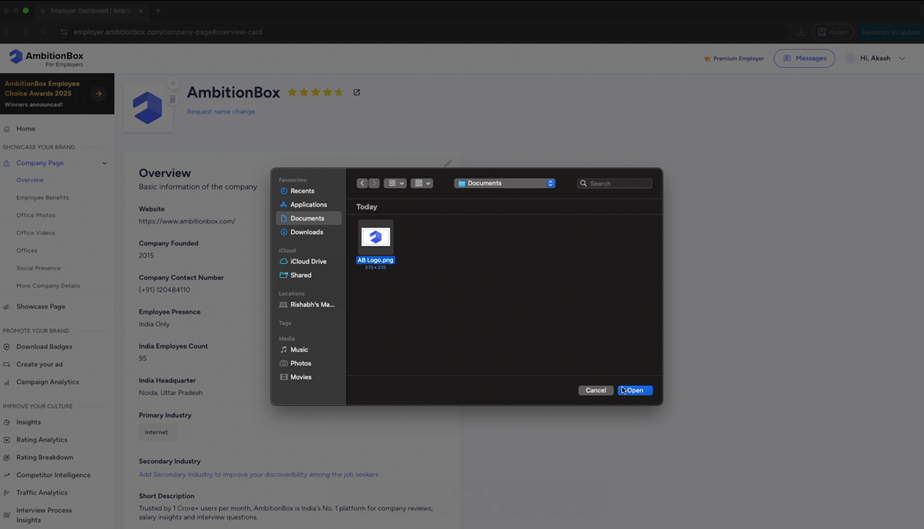
Step 5: Save Changes

Click on 'Open' to successfully update your logo.
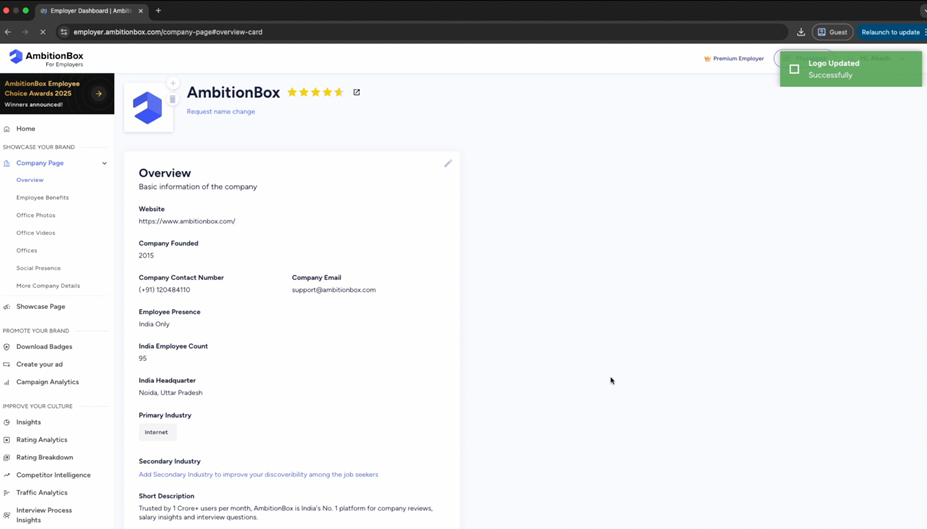
Final View: Updated Logo on Company Page

Your new logo will now be visible on your AmbitionBox company profile as well as on all related employer branding materials.


👉 Keeping your logo up to date helps job seekers and employees instantly recognize your brand.


Previous article

How to Download Badges?

Badges are a great way to showcase your company’s achievements and strengthen your employer brand. Here’s a step-by-step guide to downloading and using

Next article

How to Request For Company Name Change?

If your organization has recently rebranded or updated its registered name, you can easily request a company name change on AmbitionBox. Here’s how to


Related Articles

How To Check Employee Exit Reasons?

The Exit Reasons feature helps you understand why employees choose to leave your organization. These insights are collected directly from

1 min read

How To Download Your Company Reviews?

Downloading reviews allows you to analyze employee feedback offline and share insights internally. Here’s a step-by-step guide to downloading

2 min read

How To Invite Team Members On Employer Dashboard?

Inviting team members allows you to collaborate with your colleagues and manage your company profile more effectively. Here’s a

2 min read

How To Access Reports On AmbitionBox

The Reports section helps you analyze insights related to employee feedback and your employer branding performance. Here’s how you

2 min read

How To Invite Employees For ABECA On AmbitionBox

You can invite your employees to participate in ABECA (AmbitionBox Employee Choice Awards) and submit their reviews using multiple sharing

2 min read

How To Invite Employees To Rate Your Company On AmbitionBox

You can invite your employees to rate your company on AmbitionBox using multiple sharing options available on the Employer Dashboard.

2 min read

GO TOP